
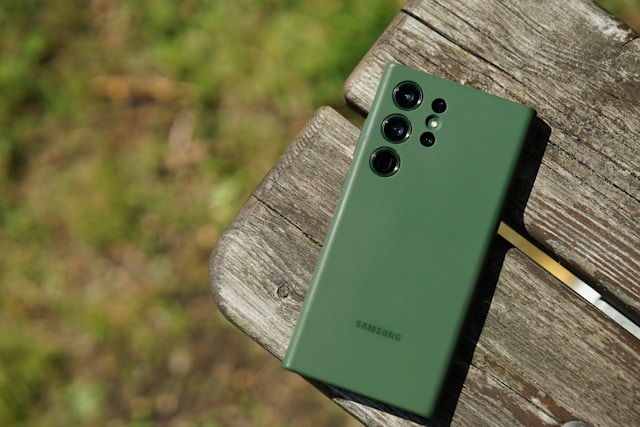
Have you noticed that people see your calls as "Private Number," "Unknown Caller," or "No Caller ID" when you call them? If you own a Samsung phone, this usually happens because your caller ID is hidden in your phone settings.
The good news is that you can easily remove the private number setting and show your phone number again. In this guide, you'll learn how to remove a private number on Samsung phones using simple steps.
What Does Private Number Mean?
A private number means your phone number is hidden when making calls. Instead of seeing your actual number, the person you are calling sees "Private Number," "Unknown Number," or a similar message.
Many people enable this feature for privacy reasons, but sometimes it gets turned on accidentally or through a network setting.
If you want your contacts, customers, friends, or family members to see your number when you call, you'll need to disable the private number feature.
Why Does My Samsung Phone Hide My Caller ID?
There are several reasons why your Samsung phone may be hiding your number:
- Caller ID settings are turned off.
- A network code was used to hide your number.
- Your mobile carrier has caller ID restrictions.
- The phone settings were changed accidentally.
- A third-party calling app modified your caller ID settings.
Fortunately, fixing the problem is usually quick and easy.
Steps to Disable Private Number on Samsung
Follow these simple steps to show your phone number again.
Method 1: Change Caller ID Settings
This is the most common solution.
Step 1: Open the Phone App
On your Samsung device, tap the Phone app.
Step 2: Tap the Three Dots
Look at the top-right corner of the screen and tap the three-dot menu icon.
#### Step 3: Open Settings
From the menu, select Settings.
#### Step 4: Tap Supplementary Services
Depending on your Samsung model, you may see options such as:
- Supplementary Services
- More Settings
- Calling Accounts
Tap the available option.
Step 5: Select Show Caller ID
Find and tap Show Caller ID.
Step 6: Allow your number to appear
The options you see may vary depending on your Samsung model.
- Network Default
- Show Number
- Hide Number
Select Network Default or Show Number.
After making the change, your number should be visible when calling other people.
Method 2: Use a Caller ID Code
Sometimes a network code is responsible for hiding your number.
To unhide your number for a particular call:
1. Open the Phone app.
2. Dial *31# followed by the phone number.
Example:
*31#08012345678
Then press the call button.
This code tells the network to display your caller ID for that call.
Method 3: Reset Network Settings
If the caller ID option is unavailable or not working, resetting network settings may help.
### Steps to Reset Network Settings
1. Open Settings.
2. Tap General Management.
3. Select Reset.
4. Tap Reset Network Settings.
5. Confirm the action.
Your Wi-Fi, Bluetooth, and mobile network settings will be reset, but your photos and personal files will remain safe.
Method 4: Contact Your Mobile Network
Sometimes the issue comes from your network provider rather than your Samsung phone.
If your number still appears as private after changing the settings, contact your mobile carrier and ask them to:
- Enable caller ID.
- Remove caller ID restrictions.
- Restore default calling settings.
Most carriers can fix the issue within minutes.
##Check Whether Your Number Is Showing Correctly
After changing your settings:
1. Call a friend or family member.
2. Ask them what appears on their screen.
3. If your phone number is displayed, the issue has been resolved.
You can also try calling another phone that you own.
Advantages of Making Your Number Visible
Showing your number has several benefits:
People Are More Likely to Answer
Many people ignore calls from private or unknown numbers because they think they may be spam calls.
Better for Business Calls
If you use your Samsung phone for business, customers are more likely to answer when they can see your number.
Easier Communication
Friends and family can identify you immediately when you call.
Improved Trust
Displaying your number makes your calls appear more trustworthy and legitimate.
Frequently Asked Questions
Can I remove a private number on any Samsung phone?
Yes. Most Samsung Galaxy devices allow you to change caller ID settings, although menu names may vary slightly depending on the model and software version.
Why can't I find the Show Caller ID option?
Some carriers hide this setting. In that case, contact your network provider for assistance.
Will network reset delete my photos?
No. Resetting network settings only affects Wi-Fi, Bluetooth, and mobile network configurations. Your photos, apps, and files remain safe.
Can I hide my number again later?
Yes. You can return to the caller ID settings and select Hide Number whenever you want.
Final Thoughts
If your Samsung phone is showing a private number when making calls, don't worry. In most cases, the problem can be fixed by changing your caller ID settings, using the correct network code, or contacting your mobile provider.
Start by opening the Phone app and checking the caller ID settings. This simple step solves the problem for most Samsung users. Once enabled, your phone number will be visible again, making it easier for friends, family, and customers to recognize your calls.


No comments yet.